



How to Use a Mobile Label Printer via Bluetooth?
A mobile label printer lets you print labels directly from your phone. Learn how to connect a thermal bluetooth label printer to your iPhone or Android. Start mobile label printing in minutes!
How to Connect Bluetooth Printer On iOS and Android?
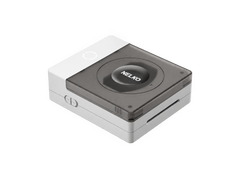
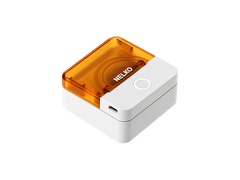
To make the steps easier to follow, we'll use the Nelko P21 Label Printer as an example.
This Bluetooth label printer uses thermal printing technology, so you don't need ink or toner.
Step 1: Turn on the Thermal Label Printer
Press and hold the Nelko P21's power button for about 2 seconds to turn it on. Wait a moment for the printer to start up before moving to the next step.
Keeping the printer powered on throughout the setup will help prevent connection interruptions.
Step 2: Turn on Bluetooth on Your Phone
Next, enable Bluetooth on your phone. On an iPhone or Android phone, open Settings and turn on Bluetooth.
You don't necessarily need to pair the printer from the phone's Bluetooth menu first. Nelko's app handles the connection directly.
Step 3: Download NELKO App and Find Your Printer
So how do you add a printer to your phone? Just download and open the NELKO App on your phone. In the app, search for your P21 printer and Click it to connect.
Once the app shows that the P21 is connected, the phone and printer are ready to communicate. You can then move on to creating your first label.
Step 4: Print a Test Label
Before creating a detailed label, print a simple test label. If everything looks good, your Bluetooth connection is working and you can start creating the labels you actually need.
Common Bluetooth Connection Problems and How to Fix Them
Even when the setup is simple, Bluetooth printers can sometimes have bluetooth connection problems. Here are some of the most common issues and what you can do about them.
| Issue | Cause | Solution |
| Printer not found | The printer is off, Bluetooth is disabled on the phone, or app Bluetooth permission is not enabled | Turn on the printer and Bluetooth, then give the app Bluetooth permission |
| Printer won't print | The wrong printer is selected in the app | Go to the app settings and select the correct printer |
| Printer goes offline | The battery is low, or the printer is linked to another device | Charge the printer; Disconnect it from other devices before reconnecting |
Directly click here to get the best answer if you still have problems for using the label printer.
How to Use a Portable Label Printer for Mobile Label Printing
Once your phone and printer are connected, using a portable printer is straightforward. A mobile printer lets you create labels wherever you need them, without relying on a fixed computer setup.

Use a Bluetooth Label Printer to Print Labels
As a DIY enthusiast who enjoys keeping my home organized, I often use the Nelko P21 to print labels for storage boxes, craft supplies, and seasonal projects. Its ink-free thermal printing makes everyday labeling simple and convenient.
Tap Print, and you're ready to bring your ideas to life! Mobile label printing can help with home organization, small business packaging, DIY projects, and more.
- Home Organization: Label storage bins, kitchen jars, pantry containers, drawers, and shelves to keep household items organized.
- Small Business: Print product labels, packaging labels, inventory labels, and price tags for daily business tasks. Also, for small businesses, mobile label printing can simplify printing shipping labels for daily orders, especially when handling multiple packages.
- DIY Projects: Label beads, ribbons, buttons, and other craft supplies to keep materials sorted.
- Travel Organization: Label luggage organizers, toiletry bags, storage pouches, and travel accessories.
- School Supplies: Label notebooks, pencil cases, folders, and containers.
- Gift Packaging: Create personalized labels for gift boxes, party favors, and handmade presents.
- Christmas Gift Tags: Design festive labels in the app for Christmas gifts. You can also customize a free gift tag template and print it on compatible label paper.
- Event Planning: Make labels for party favor bags, treat containers, and event supplies.
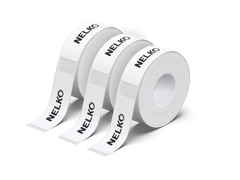
A mobile Bluetooth printer like the Nelko P21 makes it easier to create and print compatible labels directly from your phone. Before printing, check that the printer supports your chosen label size and intended use.
Final Thoughts
Connecting a Bluetooth label printer to your phone makes mobile label printing simple and convenient.
With a compatible mobile thermal printer like the Nelko P21, you can print labels for home organization, small business tasks, and creative projects directly from your phone, without ink or toner.
FAQs
Why can't the app find my Bluetooth label printer?
Check that the printer is turned on, your phone's Bluetooth is enabled, and the app has Bluetooth permission. The printer may also be connected to another device or too far away from your phone.
Should I pair the printer in my phone's Bluetooth settings?
No. Do not connect the printer from your phone's system Bluetooth settings first. As mentioned above, turn on Bluetooth, open the NELKO app, and connect the P21 from inside the app.
Why is my Bluetooth label printer connected but not printing?
Check that you're using the correct printing app and that the right printer is selected inside the app. Also check the label paper, battery level, and connection status.
Can I connect my Bluetooth label printer to more than one mobile?
It depends on the printer model. Some printers can remember more than one device, but many can only maintain an active connection with one phone or tablet at a time.
Why does the printer app ask for Bluetooth or location permission?
The app needs Bluetooth permission to find and connect to the printer. On some Android phones, location permission may also be required for Bluetooth device discovery. Allow the requested permissions, then reopen the app and connect again.
Can I use a Bluetooth label printer as a name tag printer?
Yes. A Bluetooth label printer can be used as a name tag printer for parties, events, classrooms, offices, and other activities. Simply create a name tag design in the printer's mobile app, enter the names you need, preview the layout, and print the tags directly from your phone.