



How to Print Stickers with a Thermal Printer at Home
Want to make your own stickers at home? A thermal printer makes it easy to print custom stickers for planners, home organization, product labels, and more. In this guide, you'll learn how to make stickers at home with a thermal printer.
How to Print Stickers With a Thermal Printer
Now, let's walk through how to make your own stickers step by step.
Step 1: Prepare Your Sticker Printing Supplies
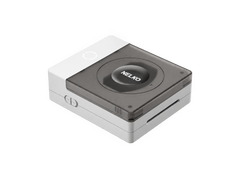
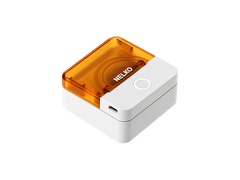
- Prepare a custom sticker printer first. For this tutorial, we'll use the Nelko PM230. It connects to your phone via Bluetooth and offers three adjustable print density levels.
- Download the NELKO app on your phone before printing. It connects to the PM230 viaBluetooth and provides fonts, filters, and themes to customize your designs.
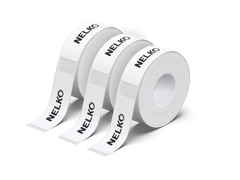
- Choose thermal sticker paper specifically compatible with the PM230. Different paper colors are available for various sticker-making projects.

- Create your own design or select an existing image. Simple text, illustrations, and black-and-white graphics are good starting points when you design your own stickers. Choose clear lines and limited details for better print results.
Step 2: Turn On Your NELKO PM230 and Load the Sticker Paper
Press the power button to turn on the printer.
Next, prepare a roll of compatible self-adhesive thermal sticker paper. Open the printer's paper compartment, load the roll, and leave a short section extending through the paper exit.
Close the compartment securely before printing.

Step 3: Connect the PM230 to Your Phone
Enable Bluetooth on your smartphone and open the NELKO app.
Find your PM230 in the app and connect to it. Once the printer is connected, you can start creating or selecting your sticker design.
Remember that the PM230 uses Bluetooth for mobile printing. You do not need to install a computer printer driver.

Step 4: Create or Select Your Sticker Design
Open the System Templates section in the NELKO app.
You can choose an existing image or create a new design using the available fonts, filters, and themes. This makes it easy to create stickers without professional design software.
When designing stickers for a thermal printer, keep these points in mind:
- Use clear text that is easy to read.
- Choose simple graphics with strong outlines.
- Avoid placing too many small details in one design.
Because the PM230 prints in black and white, designs with clear contrast usually work better than images that depend on several colors.
Step 5: Preview the Sticker and Tap "Print"
Before printing, check how your design appears in the app's print preview.
When your design is ready, tap Print to print your own stickers.

Step 6: Apply Your Sticker
For self-adhesive sticker paper, remove the backing and apply the sticker to a clean, dry surface.
You can use your finished stickers to decorate notebooks, organize supplies, or personalize everyday items. This is an easy way to make stickers at home for everyday use.
Common Sticker Printing Problems and How to Fix Them
Why Can't My Phone Find the NELKO PM230?
If your PM230 is not found or Bluetooth is not showing the printer, first check that the printer is turned on and close to your phone.
Turn Bluetooth off and back on, then reopen the NELKO app and try connecting again. If the printer is already paired with another phone, disconnect it from that device before trying again.
Why Are My Stickers Printing Too Light or Blurry?
A faded print or unclear image may be caused by low battery power, unsuitable sticker paper, or a dirty print head.
Check the PM230's battery level and make sure you are using compatible NELKO sticker paper. If the print quality is still poor, gently clean the print head according to the printer's instructions and try printing again.
Why Is My PM230 Printing Blank Stickers?
If your PM230 is printing blank stickers, the paper may be loaded in the wrong direction.
Open the printer and check that the printable side of the thermal paper faces the print head. Close the cover securely and print another sticker to see if the problem is resolved.
Why Does My Printed Sticker Look Different From the Screen?
The NELKO PM230 prints in black and white, so colorful images will not appear the same as they do on your phone.
For better results, choose designs with strong contrast, clear outlines, and minimal background details.
Why Is My Sticker Paper Not Feeding Smoothly?
If the sticker paper is not feeding correctly, the roll may be misaligned or the paper may be bent.
Open the printer and reload the sticker roll, making sure it can move freely. Remove any wrinkled or damaged paper, close the cover properly, and try printing again.
Getting started with DIY stickers!
Learning how to make stickers with a thermal printer is a simple and affordable way to create your DIY stickers. With a compatible printer and the right sticker paper, you can make stickers for creative projects without using ink.
FAQs
Does a Thermal Sticker Printer Need Ink?
No. The NELKO PM230 uses direct thermal printing, so it does not need ink, toner, or ribbons.
Do I Need Special Software to Design My Own Stickers?
No. You don't need professional design software to make your own stickers.
You can create designs using the NELKO app's built-in and diverse templates, including festivals, food, seasons.
Can Multiple Phones Connect to a Sticker Printer at the Same Time?
The PM230 is designed to connect with one mobile device at a time. To use another phone, disconnect the printer from the current phone first, then connect it through the NELKO app on the second phone.
Can the Sticker Printer Print QR Codes or Barcodes?
Yes. You can create QR codes and barcode-style labels in the NELKO app. For better scanning, keep the code large enough and test it before using it on important items.
Can I Use Third-Party Sticker Paper with a Sticker Printer?
Not all third-party sticker paper is compatible with the PM230. Using unsuitable paper may cause feeding issues or poor print quality. For the best results, choose sticker paper specifically designed for this model.