



Why Is Your Printer Printing Blank Pages?
Why is your printer printing blank pages? This usually happens when something prevents ink, toner, or heat from transferring onto the paper. Common causes include wrong printing supplies and printing component or software issues.
But the exact causes vary between Thermal, Inkjet, and Laser Printers.
This guide explains the common causes and shows you how to fix blank pages, so you can get back to printing without unnecessary replacements.
Different Printers Printing Blank Pages: Causes & Fixes
1. Inkjet Printer
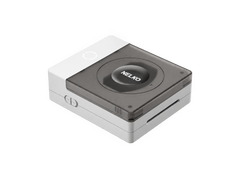
Inkjet printers use liquid ink and tiny nozzles to spray ink onto paper. A common example is an inkjet photo printer, which makes it easy to print a variety of photos.
A Quick Answer: If your portable photo printer prints blank pages or faded photos, check whether the cartridge has enough ink. If the cartridge may have dried out, gently wipe the nozzle plate in one direction with a lint-free cloth or wet wipe. To help prevent drying, print at least once a week, ideally every 3 to 5 days.
 Here are Common Causes in details for you to further understand:
- Empty or Low Ink Cartridges: Low or empty ink cartridges are among the most common reasons an Inkjet Printer prints blank pages.
- Clogged Printhead or Nozzles: An Inkjet Printer may also produce blank pages because dried ink blocks the printhead nozzles. This is especially common when a printer hasn't been used recently.
- Incorrectly Installed Ink Cartridges: This can happen when a cartridge is loose, placed in the wrong slot, or still has protective tape covering its nozzles.
- Outdated Printer Drivers or Incorrect Settings: Printer drivers allow your computer to communicate with your printer. If the drivers are outdated, corrupted, or incompatible, printing errors can occur.
How to Fix It:
- Check Ink Cartridge Levels: Check the ink levels through your printer's control panel or software. Replace empty or nearly depleted cartridges with compatible ones. For mini photo printers, check the cartridge status before printing to avoid blank photos.
- Clean the Printhead: Run the printer's built-in printhead cleaning cycle. If the nozzles remain clogged, follow the manufacturer's instructions for manual cleaning.
- Reinstall Ink Cartridges: Remove and reinstall the cartridges. Make sure they are in the correct slots and all protective tape or seals have been removed. Check cartridge compatibility if the problem continues.
- Update Printer Drivers: Check that the correct printer is selected and the print settings are accurate. Update or reinstall the printer driver if necessary.
2. Thermal Printer
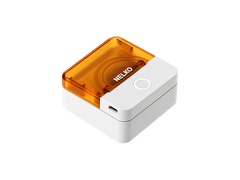
Thermal Printers use heat instead of ink or toner to create text and images. They can include shipping label printer, thermal sticker printer, and other types of printers.
So if your thermal sticker printer or label printer print blank, let me help you.
A Quick Answer to Fix: Make sure you are using compatible direct thermal labels and that the printable side is facing the correct direction. Reload the labels, check the paper size setting, and print a test label again.

Here are Common Causes in details:
- Incompatible Thermal Paper: Direct thermal printers require heat-sensitive paper or labels. Incompatible materials may feed through the printer without producing visible content.
- Thermal Paper Loaded in the Wrong Direction: If the heat-sensitive side does not face the printhead, the printer may feed labels without printing anything.
- Dirty or Damaged Thermal Printhead: Dust, adhesive residue, or printhead damage can interfere with heat transfer, resulting in blank labels, faded text, or missing sections.
- Thermal Transfer Ribbon Problems: An empty, incorrectly installed, or incompatible ribbon may prevent a thermal transfer printer from producing visible prints.
How to Fix It:
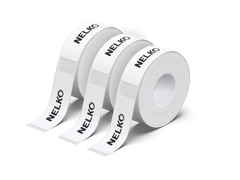
- Use Compatible Thermal Paper: Choose heat-sensitive labels designed for direct thermal printers. For portable label printer, the compatible thermal paper is vital for clear label prints.
- Check Label Loading Direction: Make sure the heat-sensitive side of the thermal labels faces the printhead. Reload the labels correctly and print a test label.
- Clean the Thermal Printhead: Use the recommended cleaning materials to remove dust and adhesive residue. If blank prints continue, check whether the printhead needs professional inspection or replacement.
- Check the Thermal Transfer Ribbon: Inspect the ribbon's condition, installation direction, and compatibility with your label material. Replace an empty or incompatible ribbon if necessary.
Note: Direct thermal printers do not require ribbons, while thermal transfer printers do. Make sure you identify your printer type before troubleshooting.
3. Laser Printer
Unlike Inkjet Printers, Laser Printers use toner powder and a drum unit to transfer text and images onto paper. If your Laser Printer prints white pages, the problem may be related to the toner cartridge or drum unit.
Here are Common Causes in details:
- Empty or Low Toner Cartridge: Insufficient toner may prevent the printer from producing visible text and images.
- Incorrectly Installed Toner Cartridge: Loose installation or remaining protective packaging may prevent toner from transferring properly.
- Drum Unit Problems: A damaged, worn, or incorrectly installed drum unit may cause blank or incomplete prints.
How to Fix It:
- Check Toner Levels: Check the toner level through your printer's display or software. Replace an empty or depleted cartridge with a compatible one.
- Reinstall the Toner Cartridge: Remove and reinstall the cartridge. Make sure all protective packaging has been removed and the cartridge is securely installed.
- Inspect the Drum Unit: Check whether the drum unit is correctly installed or damaged. Replace a worn or damaged unit according to the manufacturer's instructions.
How to Prevent Your Printer from Printing Blank Pages
Regular maintenance can help prevent blank pages and keep your printer working properly. Follow these tips based on your printer type.
For Thermal Printers
- Use Compatible Labels: Choose thermal paper and labels that match your printer's specifications.
- Load Labels Correctly: Make sure the printable side faces the printhead.
- Clean the Printhead: Remove dust and adhesive residue regularly.
- Check Print Settings: Keep print density and temperature at the recommended levels.
- Check Thermal Transfer Ribbons: Replace empty ribbons and ensure they are installed correctly.
For Inkjet and Laser Printers
- Use Your Printer Regularly: Print occasionally to help prevent ink from drying and clogging Inkjet printheads.
- Check Ink or Toner Levels: Replace empty or damaged cartridges when needed.
- Install Cartridges Correctly: Remove protective seals and make sure cartridges are properly installed.
- Maintain the Printhead or Drum Unit: Clean Inkjet printheads as needed and replace worn Laser Printer drum units.
- Update Printer Drivers: Keep your printer software and drivers up to date.
Regular maintenance and compatible printing supplies can help reduce blank pages and keep your printer running reliably.
What Can You Print with Different Types of Printers?
Different printers are designed for different printing needs.
Thermal Printers: Labels, Shipping Labels, and Stickers
Thermal printers are ideal for printing without ink or toner. Depending on the model, you can use them for:
- Product Labels: Create clear product labels, barcodes, and packaging labels for everyday business use.
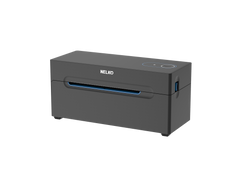
- Shipping Labels: The 4×6 thermal label printer makes printing shipping labels convenient for online sellers and small businesses.
- Custom Stickers: The thermal sticker printer lets you print personalized stickers for crafts, planners, and home organization.

Inkjet Photo Printers: Photos and Memories
For printing photos, portable photo printers offer a convenient option for everyday use. It lets you print photos from your phone, making it easy to create photo keepsakes, decorate scrapbooks, and preserve special moments.
Good Luck for Printing
Now, the problem "why does my printer print blank pages" is solved.
With these tips and fixes, you can identify why your printer is printing blank pages and get it working properly again. Regular maintenance and compatible printing materials will also help prevent future printing problems.
Consider a portable printer for fast, convenient printing on the go, whether for work, travel, or everyday use!
FAQs:
Why Is My Inkjet Printer Has Ink But Prints Blank Pages?
If your printer has ink but prints blank pages, the problem may be a clogged printhead, incorrectly installed cartridge, or protective tape covering the cartridge nozzles.
Start by checking the cartridge installation and running a printhead cleaning cycle. If the problem continues, check whether the cartridge is compatible with your printer.
Why Is My Printer Printing Blank Pages After Changing the Ink Cartridge?
This usually happens when the new cartridge isn't installed correctly or still has protective tape covering its nozzles.
Remove the cartridge and check for any remaining protective seals. Reinstall it securely in the correct slot, then print a test page.
Is It Possible for a Printer to Print Blank Pages Due to a Connectivity Issue?
Yes. A poor printer connection may interrupt print jobs and cause blank pages. For bluetooth printers, check your bluetooth connection, then restart your printer to see if the issue is resolved.
Can a Printer Driver Cause Blank Pages?
Yes. Outdated or incompatible printer drivers can interfere with communication between your computer and printer.
Check whether you're using the correct driver for your printer model. Update or reinstall it if necessary, then restart your printer and try another print job.
Why Is My Printer Feeding Paper but Not Printing Anything?
Your printer may be feeding paper correctly but failing to transfer ink, toner, or heat onto it.
The possible causes depend on your printer type:
- Inkjet Printer: Empty cartridges, clogged nozzles, or incorrect cartridge installation.
- Thermal Printer: Incompatible labels, incorrect paper direction, or printhead problems.
- Laser Printer: Empty toner, incorrect cartridge installation, or drum unit problems.
Check your printing supplies and paper installation before trying more complicated solutions.
Should I Repair or Replace My Printer If It Keeps Printing Blank Pages?
It depends on the cause and the cost of repair. Find the reason and fix it first.
However, damaged printheads, worn drum units, or other hardware problems may require professional repair. Compare the repair cost with the price of a replacement printer before making your decision.